I spend a lot of time in a terminal.
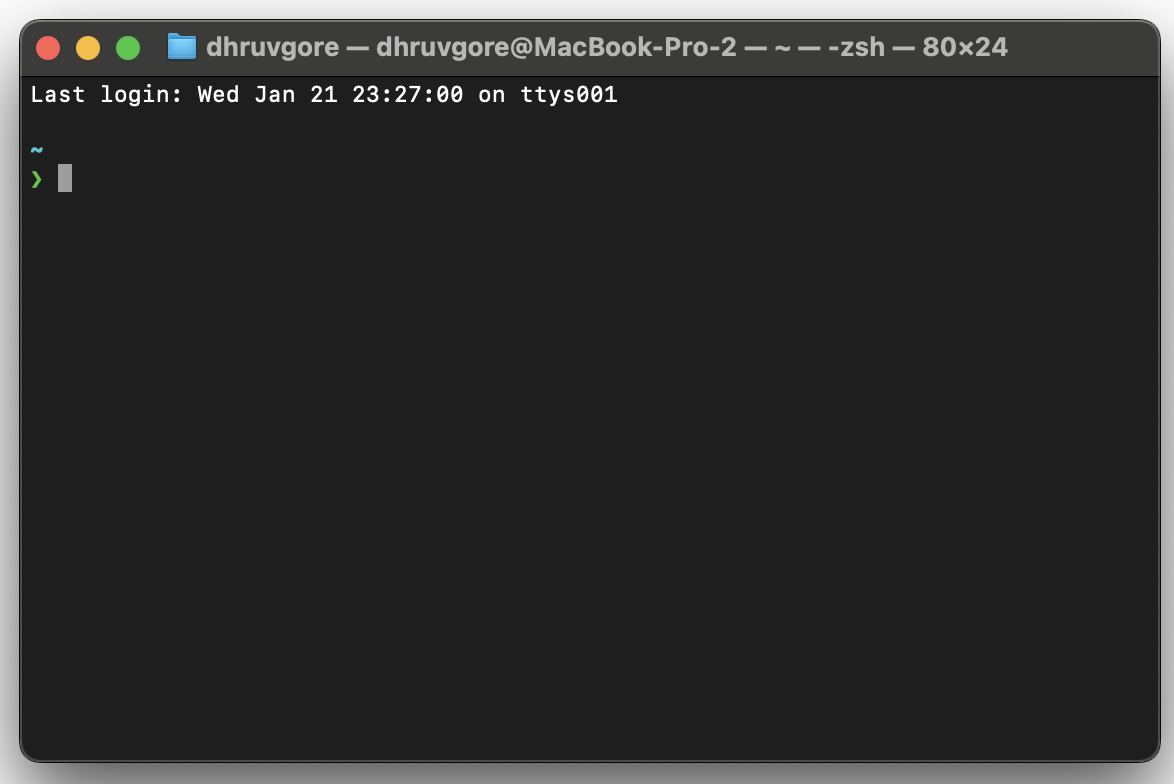
default macOS terminal
Basically, a terminal is just a way to interface with a computer at a deeper level and access the system directly.
I currently use Ghostty on MacOS, which is a relatively new terminal emulator with an emphasis on speed and performance. You can customise terminals in a variety of ways, below are a few sections of my setup and the rationale behind them.
Optimisations:
If you ask Claude Code or any CLI agent to optimise your terminal setup, it’ll replace common terminal commands like ls (list command) with modern alternatives made with Rust and Go.
#------------------------------------------------------------------#
#                           MODERN CLI OPTIMIZATIONS               #
#------------------------------------------------------------------#

# Starship Prompt (The UI layer)
eval "$(starship init zsh)"

# Zoxide - Smarter cd
eval "$(zoxide init zsh)"
alias cd=z

# FZF Configuration
[ -f ~/.fzf.zsh ] && source ~/.fzf.zsh
export FZF_DEFAULT_OPTS='--height 40% --layout=reverse --border --preview "bat --color=always --style=numbers --line-range=:500 {}" --preview-window=right:60%:wrap'
export FZF_DEFAULT_COMMAND='fd --type f --hidden --follow --exclude .git --exclude node_modules'

# Modern Replacements
alias cat='bat --paging=never'
alias ls='eza --group-directories-first'
alias ll='eza -lah --group-directories-first --git'
alias tree='eza --tree --level=3'
alias find='fd'
alias grep='rg'
alias df='duf'
alias du='dust'
alias top='btop'
alias htop='btop'

# Interactive Fuzzy Functions
# 'fe' = Fuzzy Edit
fe() {
  local file=$(fzf --query="$1" --select-1 --exit-0)
  [ -n "$file" ] && ${EDITOR:-code} "$file"
}

# 'zd' = Fuzzy CD
zd() {
  local dir=$(fd --type d --hidden --follow --exclude .git --exclude node_modules . ~ 2>/dev/null | fzf +m)
  [ -n "$dir" ] && cd "$dir"
}
AI Aliases
I’ve aliased a lot of commands so that they’re faster to type or load with configurations I want. I use Specstory with my AI agents to capture prompts and conversations, and also always run them with full permissions.
#------------------------------------------------------------------#
#                           AI CLI + SPECSTORY                     #
#------------------------------------------------------------------#

# "How" Command - AI explainer for terminal commands
how() {
  # Queries Gemini to explain a command without executing it
  gemini -m "gemini-3-flash-preview" -p "Identify the terminal command for: $*.
  Rules: No emojis, technical tone, break down every flag used." 2>/dev/null
}

# AI Coding Agents (YOLO mode for rapid development)
alias claude='specstory run claude -c "claude --dangerously-skip-permissions"'
alias gemini='specstory run gemini -c "gemini --yolo"'
alias cursor='specstory run cursor -c "cursor --yolo"'

# Antigravity
alias agy='antigravity'
export PATH="$HOME/.antigravity/antigravity/bin:$PATH"
Dev tools:
Once again most of these are commands that speed up development. Much faster to type “gc” instead of “git commit”. Also enabling NVM lazy loading speeds up terminal boot times greatly (from 0.8s to ~0.09s when I benchmarked it)!
#------------------------------------------------------------------#
#                           DEV WORKFLOW                           #
#------------------------------------------------------------------#

# Git Shortcuts
alias lg='lazygit'
alias gs='git status'
alias ga='git add'
alias gc='git commit -v'
alias gp='git push'
alias gl='git pull'
alias gd='git diff'
alias gco='git checkout'
alias undo='git reset --soft HEAD~1'

# New Project Generator
newproject() {
  local project_dir="$HOME/developer/$1"
  mkdir -p "$project_dir" && builtin cd "$project_dir"
  git init
  [[ "$2" == "node" ]] && npm init -y
  [[ "$2" == "python" ]] && python3 -m venv venv
}

# NVM Lazy Loading (Saves ~0.5s on startup)
export NVM_DIR="$HOME/.nvm"
_nvm_load() {
  unset -f node npm npx nvm
  [ -s "$NVM_DIR/nvm.sh" ] && \. "$NVM_DIR/nvm.sh"
}
node() { _nvm_load; node "$@"; }
npm() { _nvm_load; npm "$@"; }
nvm() { _nvm_load; nvm "$@"; }

# Python Shortcuts
alias py='python3'
alias venv='python3 -m venv venv'
alias activate='source venv/bin/activate'
Automations
I have a bunch of commands for routine scripts, like automatically uploading my Voice Memos from iPhone and also OBS videos to a Google Cloud storage bucket.
This way clearing space on my Mac and archiving my memos is as simple as typing ‘uploadvoicememos’ into my terminal.
Help
Because I have a ton of commands, I also have a command that lists everything I’ve configured!
#------------------------------------------------------------------#
#                           CUSTOM HELP                              #
#------------------------------------------------------------------#
aliases() {
    echo "
╔══════════════════════════════════════════════════════════════════════╗
║                        CUSTOM COMMANDS                              ║
╚══════════════════════════════════════════════════════════════════════╝
  ... (List of my commands) ...
    "
}

alias help='aliases'
alias '?'=aliases
Hopefully my setup gives inspiration for your terminal setup, let me know if you have any questions! Also feel free to suggest improvements/other cool uses that I might enjoy, thanks for reading and don’t forget to like and subscribe :))